File Manager
Your file manager serves as a hub for uploading and storing images and files intended for email attachments.
It accommodates various file types, allowing you to upload and store multiple files, each with a maximum size limit of 10MB.
|
File Type |
Extensions |
|
Text files |
.txt, .csv, .log, .css, .ics |
|
Image files |
.jpg, .jpe, .jpeg, .gif, .png, .bmp, .psd, .tif, .tiff, .svg, .indd, .ai, .eps |
|
Document files |
.doc, .docx, .rtf, .odt, .ott, .pdf, .pub, .pages, .mobi, .epub |
|
Audio files |
.mp3, .m4a, .m4v, .wma, .ogg, .flac, .wav, .aif, .aifc, .aiff |
|
Video files |
.mp4, .mov, .avi, .mkv, .mpeg, .mpg, .wmv |
|
Spreadsheet files |
.xls, .xlsx, .ods, .numbers |
|
Presentation files |
.odp, .ppt, .pptx, .pps, .key |
|
Archive files |
.zip, .vcf |
How to upload an image or file to the file manager”‹
To upload an image to your file manager:
- Use the left side account menu to navigate to the File manager page.
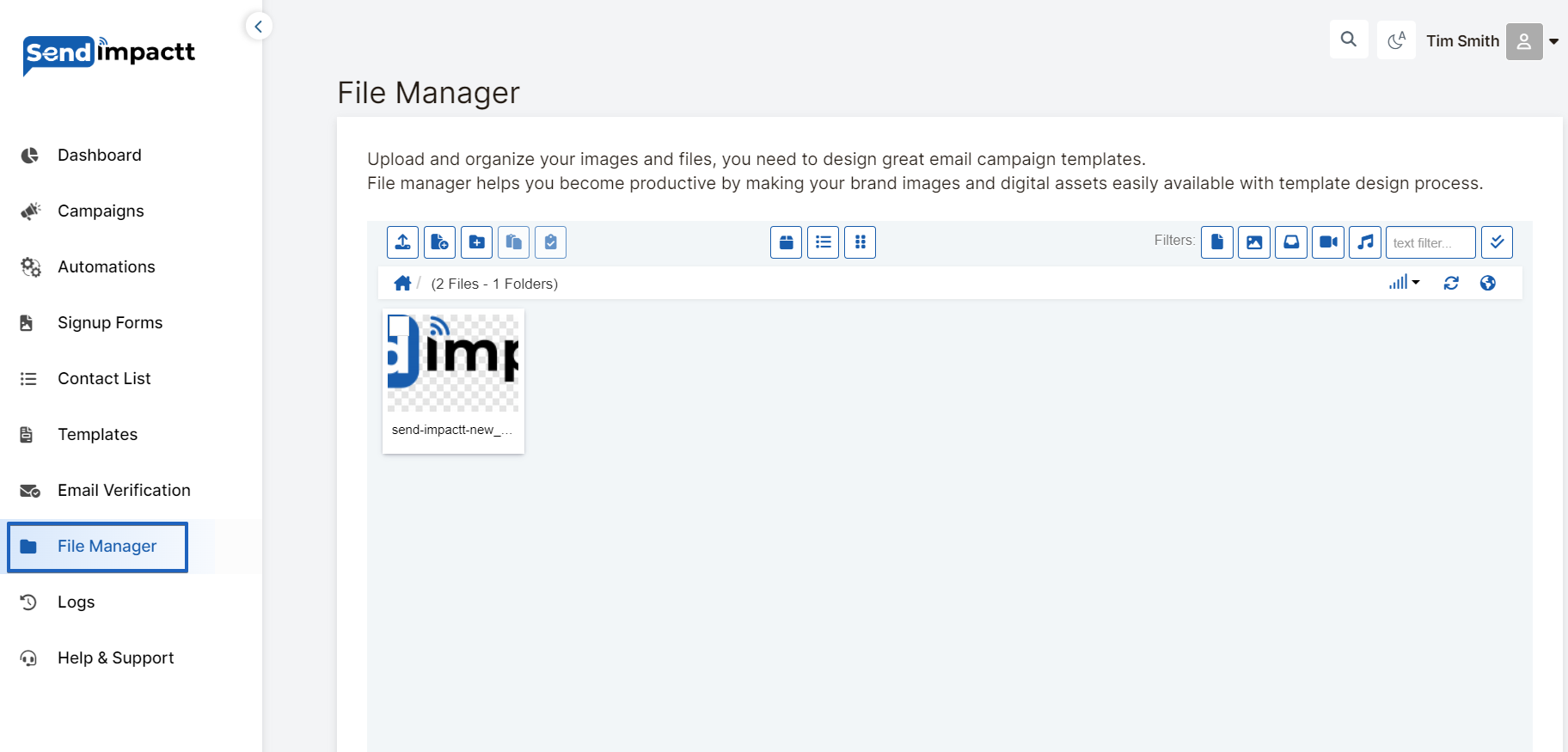
2. Click the Upload button & then Add file.
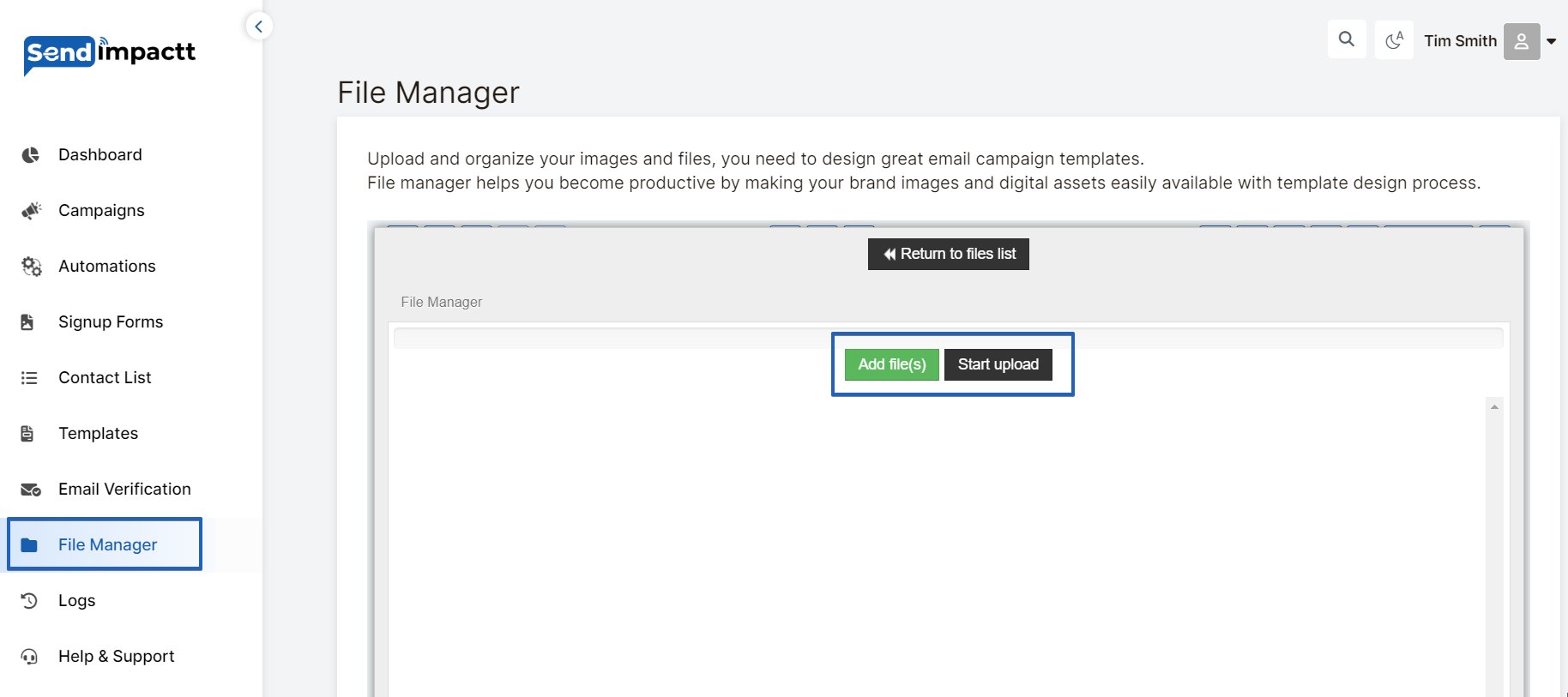
3. Select the file you wish to add to your file manager.
That’s it! Your file will now be stored in your Sendimpactt account, ready to be included in your next email.
How to rename or delete an image or file”‹
To rename or delete a folder using your file manager:
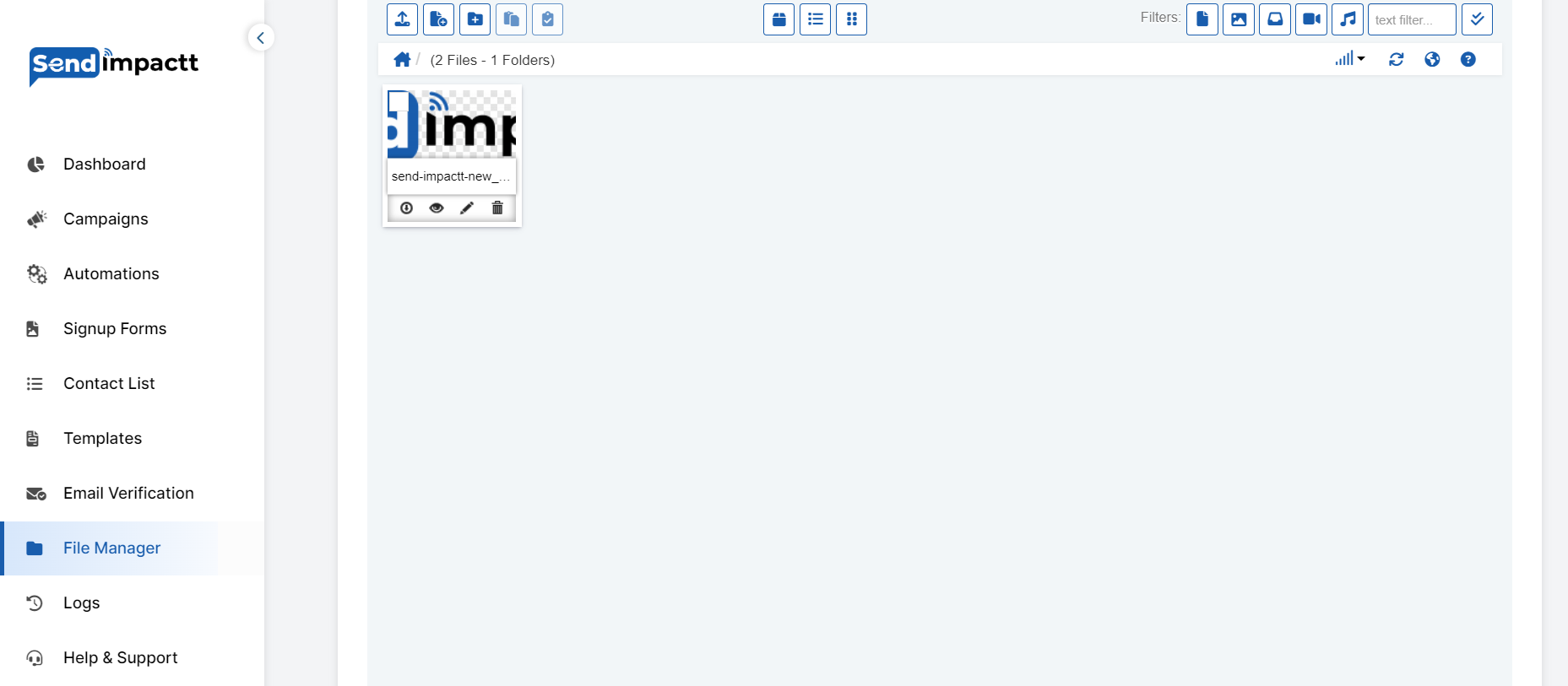
- Navigate to the folder you wish to rename or delete on the left-hand side
- When you hover over the folder, two icons will appear: a pencil for renaming and a trashcan for deletion.
How to organize your images and files into folders”‹
Instructions for organizing your images and files into folders:
When you access your file manager, all files are initially displayed regardless of their type. However, you can filter them by selecting All, Images, or Files on the left-hand side under Files. If you wish to enhance organization, you can create folders.
To create a folder in your file manager:
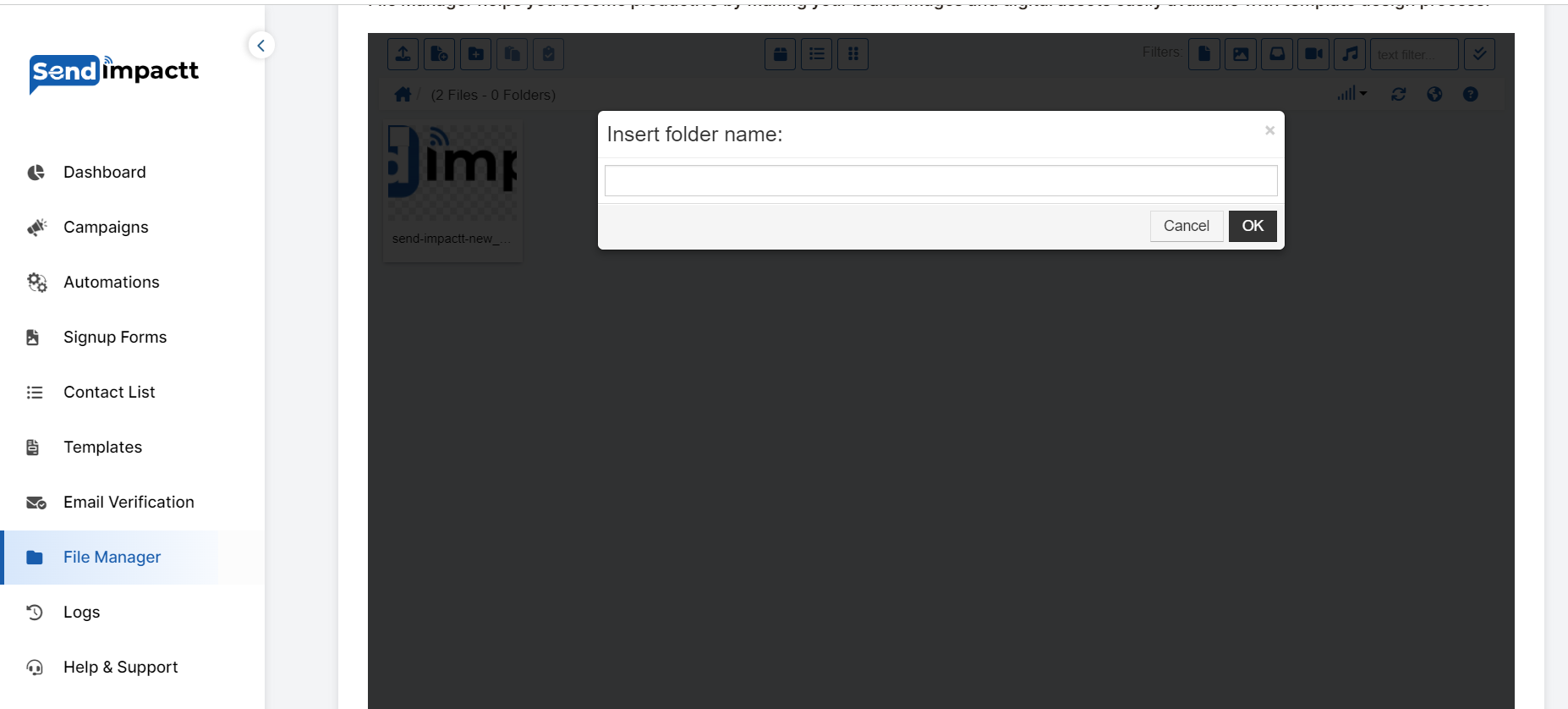
1. Navigate to the left-hand side under Folder and click on New folder.
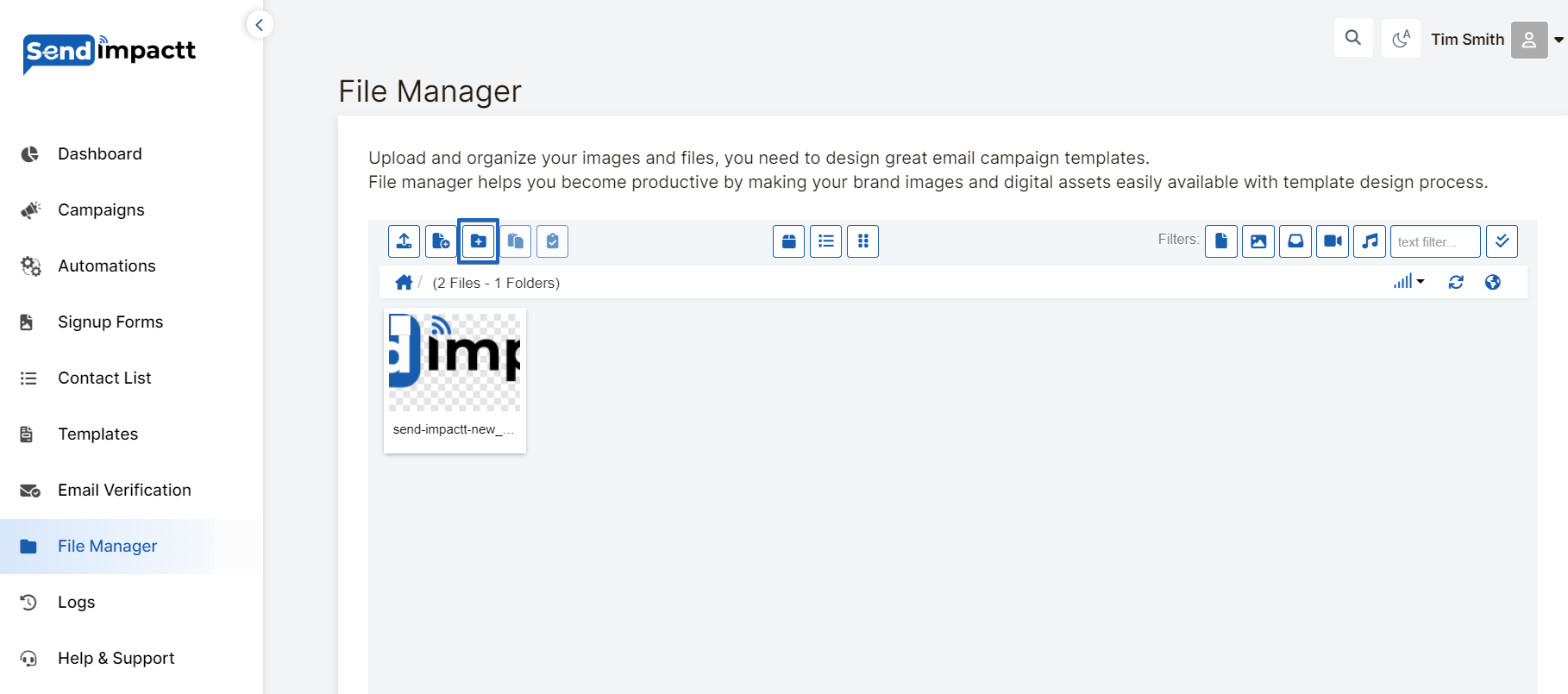
2. Enter a name for your new folder and click Create.